-1.png?width=360&height=66&name=Untitled%20design%20(4)-1.png)
This article applies to the following role permissions:
ConexED Administrator - Department Director - Group Manager
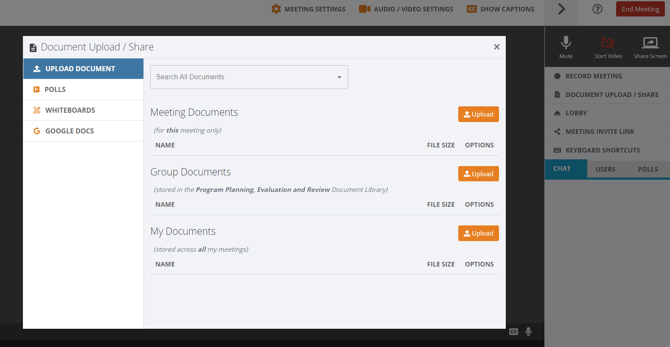
The group Document Library allows master copies of frequently used items to be stored and accessed by all members of the group. These items can be shared during virtual meetings as static documents, or converted into whiteboard documents for signature. Group Managers or higher can manage their group's documents from the Document Library.
To access a group's Document Library, users should navigate to the specific group. In the menu navigate to: Scheduling - Select Department - Select Group- select Document Library.
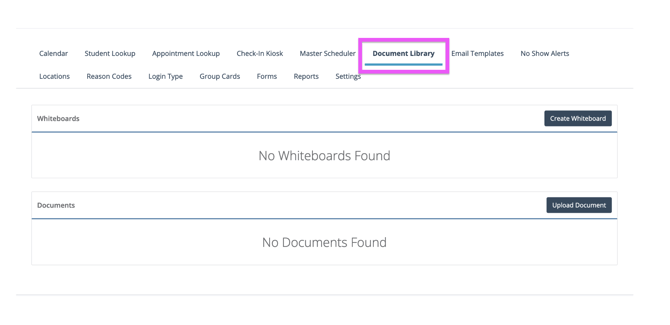
Uploading a New Document
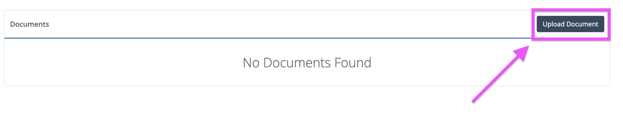
To upload a new document to your group, click on the Upload Document button located in the Documents section of the page:
Once you click on the Upload Document button, a popup window will open for you to select a file from your device:
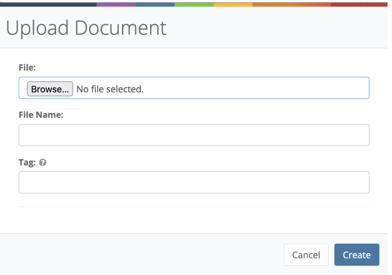
- File: Click on the browse button to select a file from your device
- File Name: Enter a name for your document. This document name will appear in the documents table within your group Document Library as well as when you upload or share the document during virtual meetings.
- Tag (optional): Include a tag for your document to make it easier for users to search and find it quickly.
After you have selected a document, click the Create button at the bottom of the Upload Document modal to successfully upload your document to the group Document Library.
Converting a Document to a Whiteboard
You can easily convert your group documents into a Whiteboard right from the Document Library. Once you have successfully uploaded a document into your Document Library, you will see an arrow icon displayed
During a meeting, to share a document, select the upload and follow the steps.